
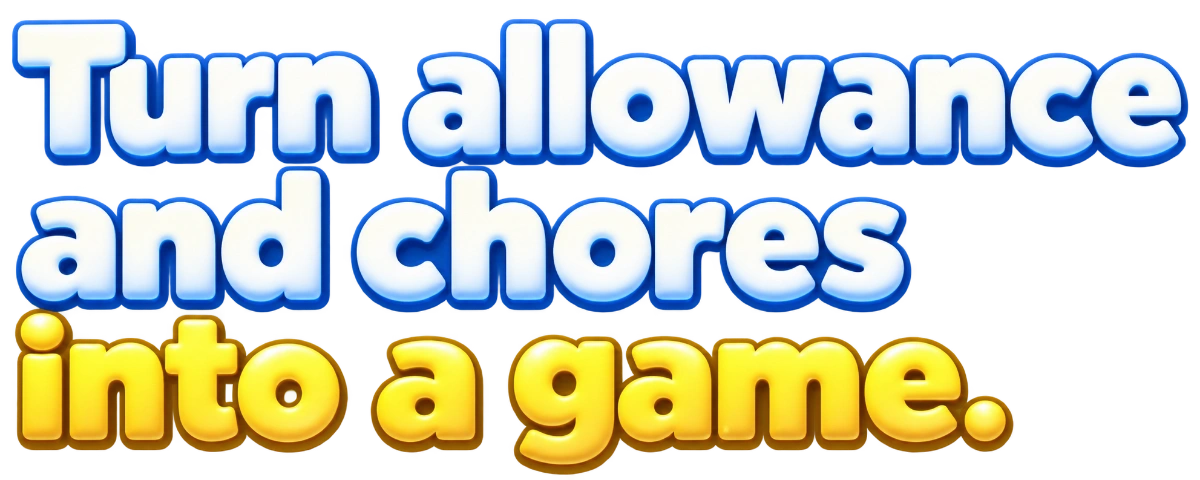
Use the features you need
Use pocket money, chores-only mode, or everything together. You choose the missions, rewards and routines.

Chores, pocket money & rewards
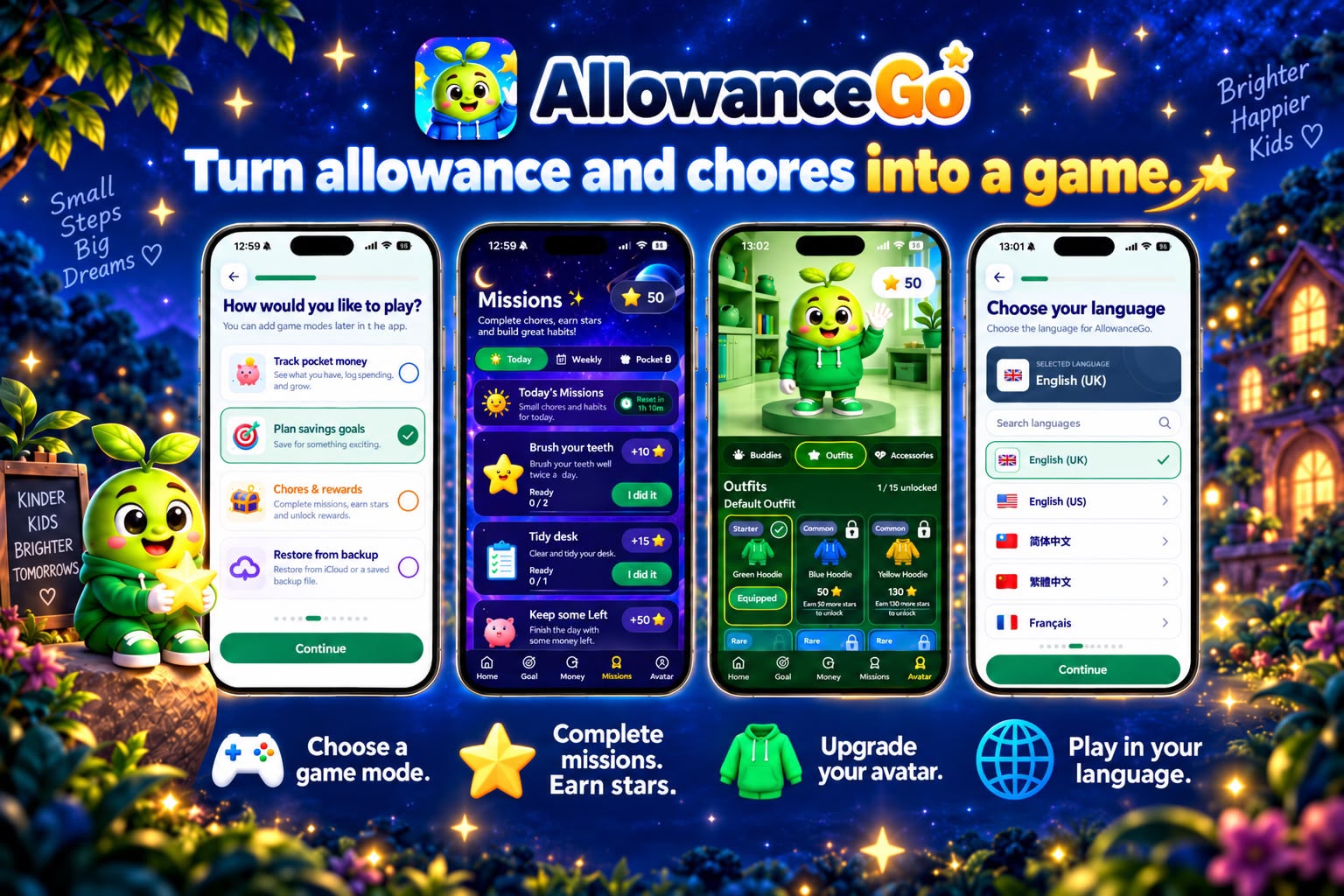
Kids complete missions, earn stars and use them to upgrade their avatar. Track pocket money and save for goals, too.
For iPhone & iPad Free to download

Complete missions. Earn stars.
 Chores.Complete missions. Earn stars.
 Pocket money.Track money. Save for goals.
 Avatar rewards.Use stars to unlock outfits.
How AllowanceGo works
A mission is a chore or task. Kids complete missions to earn stars.
They spend those stars on their avatar — their character in the app.
01 Missions & stars
Parents add chores as missions, such as tidying a room. Kids mark them as done. If a mission needs approval, a parent checks it before the stars are added.
They are added to your child’s star balance. Your child can save them up or spend them on avatar items.
Complete missions to earn stars.
02 Avatar rewards
An avatar is your child’s character in the app. Open Avatar, choose an outfit or accessory, and spend earned stars to unlock it.
Stars unlock avatar items. Pocket money is tracked separately.
See how avatar rewards work
Earn stars. Unlock outfits.
03 Pocket money & saving goals
See how much money your child has and what they have spent. Set a saving goal for a toy, a day out or something else they want.

Choose what works for your family
Use chores, pocket money or both. Parents set the tasks and money rules. Kids can choose which avatar items to spend their stars on.
Use pocket money, chores-only mode, or everything together. You choose the missions, rewards and routines.
Add child profiles with their own missions, stars, pocket money and saving goals.
Parents choose the missions and settings. Core money records stay on the device.
Need help?
Learn how missions, stars and pocket money work.
Ask us a questionAllowanceGo helps families manage chores, pocket money and saving goals. Kids complete missions, earn stars and spend them on outfits and accessories for their avatar.
A mission is a chore or task set by a parent. Kids complete missions to earn stars. If a mission needs approval, the stars are added after a parent approves it. Kids spend their stars on outfits and accessories for their avatar — their character in the app.
Yes, AllowanceGo is free to download on the App Store for iPhone.
No. You do not need a bank account or card. AllowanceGo tracks money for your family; it does not move real money. Core money records stay on the device.
Yes. Add a profile for each child. Each has their own missions, stars, pocket money and saving goals.
No. You can give a regular allowance, link it to chores, or keep chores and money separate. You choose what works for your family.
Yes. In chores-only mode, kids complete missions, earn stars and use them to upgrade their avatar. No pocket money is needed. You can also use money tracking on its own or use both.
For purchases billed through the App Store, sign in to Apple's refund website with the Apple Account on your receipt. Choose “Request a refund” and your reason, then select the specific AllowanceGo charge by date and amount before submitting.
If you only want one month's renewal reviewed, select that charge. This does not submit refund requests for earlier months. Apple decides eligibility; a refund is not guaranteed.
An annual plan is billed as one yearly charge, rather than separate monthly payments. See Apple's refund instructions.
On your iPhone, open Settings, tap your name, then Subscriptions. Select AllowanceGo and cancel the subscription. For a break from a monthly plan, cancel before the next renewal and subscribe again when you want to return.
Cancellation keeps access until the paid period ends and does not request a refund for a past charge. Check the store's confirmation for your end date. See Apple's cancellation instructions.
Check the Apple Account and amount on your receipt. A pending charge must finish processing before you can request a refund. You can track a submitted request on Apple's refund website. For a request you cannot submit there, contact Apple Support.
Get started with AllowanceGo
Download the app and set your first mission.

For iPhone & iPad · Free to download